


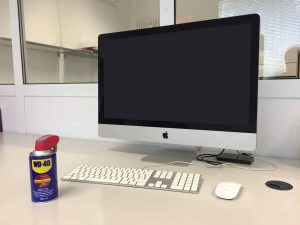
Considering their frequent and intense use, it’s important to care for the functionality of your computer and its devices by understanding how to clean them. A great deal can be done, not so much on the electronic side as on the ordinary maintenance side. The main problem which causes negative consequences and malfunctions is dust in the environment, as well as moisture and grease (from breathing or your hands) deposited on the keyboard and mouse, as well as on the actual computer and the most commonly used devices. Combined, these elements can make the electrical and electro-mechanical contacts of the entire system less efficient. If you don’t clean these items periodically, the resulting damage can also be very serious, as in the case of the computer’s central unit overheating when the cooling fans are clogged and cannot operate properly.
What you’ll need
- Vacuum
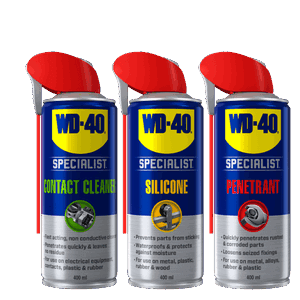
- Specialist Rapid-Drying Contact Cleaner
- Soft bristle brush
- WD-40 Multi-Use
- Screen cleaning liquid
- Microfibre cloth
- Degreaser
- Dry Anti-friction PTFE Lubricant
- Cotton swab
 Step 1: Clean the computer
 Step 1: Clean the computer
After having disconnected each device and the power cord from the computer, the first step in cleaning your computer is to remove any dust that has accumulated in the fan suction grilles using a vacuum cleaner with a narrow nozzle. If possible, open the computer’s case and vacuum all its components. Experts will also be able to extract the RAMs from their slots and disconnect any other connections that can now be suitably treated with WD-40 Specialist Rapid-Drying Contact Cleaner before being put back.
Step 2: The keyboard
 Step 2: The keyboard
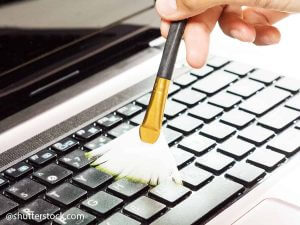
This is the most stressed component. Grease, dirt and dust are deposited on it, which also creep into the spaces around the keys. Once disconnected from the computer, turn the keyboard over and gently shake it to remove dust. Always keeping it upside down, pass a soft bristle brush over the entire surface. The final use of a vacuum cleaner is always preferable to that of compressed air to clean your computer accessories. Then finally clean the keyboard by dampening a microfibre cloth with a special keyboard cleaning liquid, then passing it several times over the keys and the entire surface. You can also use WD-40 Multi-Use for this purpose. Be careful not to apply too much liquid that could creep between the keys.
Step 3: USB and monitor connections
After a general cleaning with a vacuum cleaner and brush, apply a drop of WD-40 Specialist Rapid-Drying Contact Cleaner to the connections, which quickly penetrates the hardest to reach areas, drying without leaving any residue. You should also use the same product on the ends of the connection cables. The same applies to any connections of external hard-disks, printers, scanners and other devices. You should also organise the cables of the various devices using the various systems available at specialised stores. When different cables and wires tangle it can cause accidents and various problems. Clean the monitor (while off) with a suitable liquid or a good window cleaner.
Step 4: Mouse
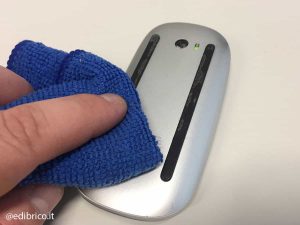 Step 4: Mou
Remove any lint clogging the area around the LED optical reader and then remove any grease from the areas where it comes into contact with the table. These areas contain grease and various lint that interfere with the sliding of the mouse itself. Use a cloth and some detergent. Clean the work surface and any mouse pad with a normal degreasing liquid. If the mouse is wireless, check the status of the batteries to see if they need to be replaced or recharged.
Step 5: Scanner
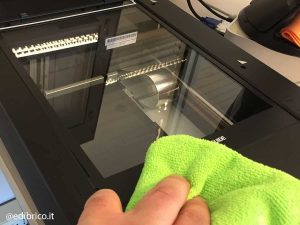 Step 5: Scanner
Most scanners provide access to their inside, where the optical reader scroll bars or guides are located. These must be periodically lubricated, otherwise they could jam or slide discontinuously, reducing scan quality. The ideal product is WD-40 Specialist Dry Anti-Friction PTFE Lubricant, which leaves a dry film while providing excellent lubrication that does not attract dust. The scanner’s glass should be thoroughly cleaned on both sides with glass cleaner.
Step 6: Printer
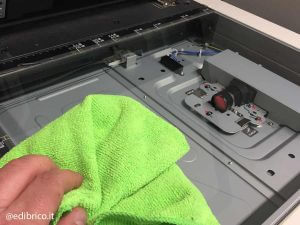 Step 6: Printer
It doesn’t take much to open this device, remove its moving components, clean and vacuum it internally, and then apply a few drops of Dry Anti-Friction PTFE Lubricant to the mechanisms with mechanical contacts, gears, slides, etc. Be careful not to create any drips, perhaps applying the product with a cotton swab. Remove the cartridges of the various toners and clean the insertion guides with a clean cloth, as well as the electrical contacts, with WD-40 Specialist Rapid-Drying Contact Cleaner.
To follow all the news of WD-40 Africa, follow us on Facebook and Instagram !

